Commission Module
Overview: It is often necessary to have varying commission schemes for sales rep to accommodate business goals or handle negotiated commission plans by sales rep. This can be used to persuade sales people to sell specific product over others for promotional purposes, adjust commission payouts based on customer attributes (corporate customer, new customer, 2 year customer, etc…), or pay varying commission percentages by sales rep. The commission module allows item categories to be grouped to user created commission levels then assigned to sales reps where percentages can be set for commission calculations. Customer commission levels can be created and assigned to, specific customers to adjust overall commission payouts.
Customer Configuration
1. Create the custom commission levels under #9 Configuration > Customer Configuration > Customer Commission Levels. Create different levels for different types as illustrated below. Double click in each field and type a percentage.

2. Customer Commission Levels can be assigned to Customer Pricing Types or individual Customers.
a. Configuration > Customer Configuration > Customer PricingTypes.
b. File Maintenance > Customer File.
The percentage entered will adjust to overall commission payout. (i.e. if the commission was $100 and the customer is set to a level defined at 80 the payout would adjust to $80 or 80%). A long standing customer may not earn a sales rep a higher commission level as a brand new customer.
Item Commission Level
1. Create item commission levels through Configuration > Item Configuration > Item Commission Levels. Click add to create a new level. Item Commission Levels could be setup to handle parts, under $100 retail, over $100 retail, major rental equipment, minor rental equipment, tenting, table top, or any designation you choose.

2. Assign the appropriate commission level to each Item Category. Configuration > Item Configuration > Item Categories.
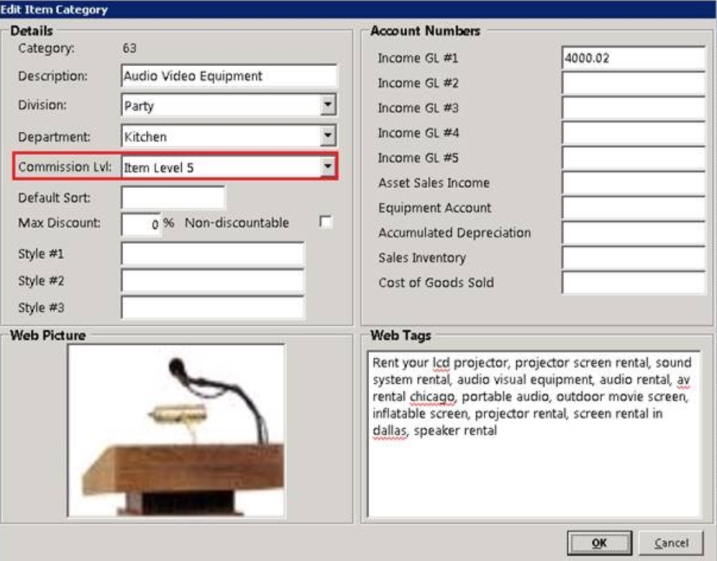
3. In Configuration > System Configuration > Sales Rep, each item commission level can be defined under exceptions. This allows the user to define commission percentages for the varying Item Commission Levels by sales reps.
a. If an exception is not defined for a sales rep, the standard commission levels will be used in the commission calculations. If you only want to pay on the exceptions you would set the standard commission percentages to zero.

4. Click in each field and enter the percentage of commission to be paid for the corresponding level and type of revenue (Rent, Sale, Asset, etc...).
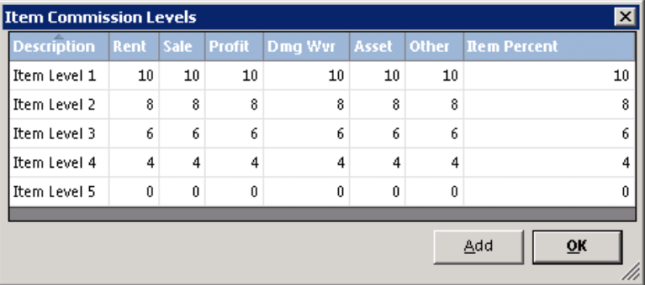
While, setting exceptions, you will also need to set the base percentages that your sales reps are going to receive.
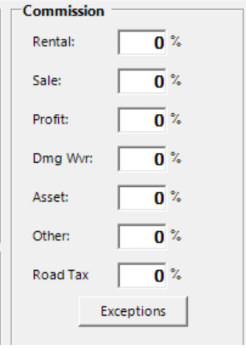
These will apply to all items that don’t have an exception.
For any period, desired, run the Sales Rep Commission Report from Accounting Reports > Sales Rep Reports Menu > Commission Report. Be sure to select “Enhanced Reporting”. If you do not have the commission module, this option will not be accessible. This report will only be accurate with live data after an End of Day has been completed.
•Note: Commission totals will show accurately in training mode.
*Note: Commission does not calculate retroactively.